


By using this site, you agree to the Privacy Policy and Terms of Use.
Accept
Tech Daily TimeTech Daily Time
Notification
Latest News
Smart Business Communication: Trends Shaping the Future of Connectivity
Business
Modern Solutions for Thinning Hair: New Advances and Everyday Strategies
Health
How Belt Press Rentals Can Improve Wastewater Management Efficiency
Tech News
A Guide to Selecting Microwave Moisture Analyzers
Gadgets Lifestyle
Revolutionizing the Creator Economy and E-commerce with AI Cloning
The Revolution of AI Cloning in the Creator Economy and E-commerce
Artificial Intelligence
Aa
  • Tech News
  • Gadgets
    • Computers
    • Mobiles
  • Internet
  • Softwares
  • Artificial Intelligence
  • Digital Marketing
  • Business
  • Reviews
  • Lifestyle
    • Fashion
    • Health
    • Education
    • Home improvement
    • Sports
    • Travel
Reading: Different Methods to Perform Netgear EX2700 Setup
Share
Aa
Tech Daily TimeTech Daily Time
Search
Have an existing account? Sign In
Follow US
© 2022 Tech Dailt Time. All Rights Reserved.
Tech Daily Time > Tech News > Different Methods to Perform Netgear EX2700 Setup
Tech News

Different Methods to Perform Netgear EX2700 Setup

Admin
Last updated: 2022/04/28 at 12:02 PM
Admin
Share
SHARE

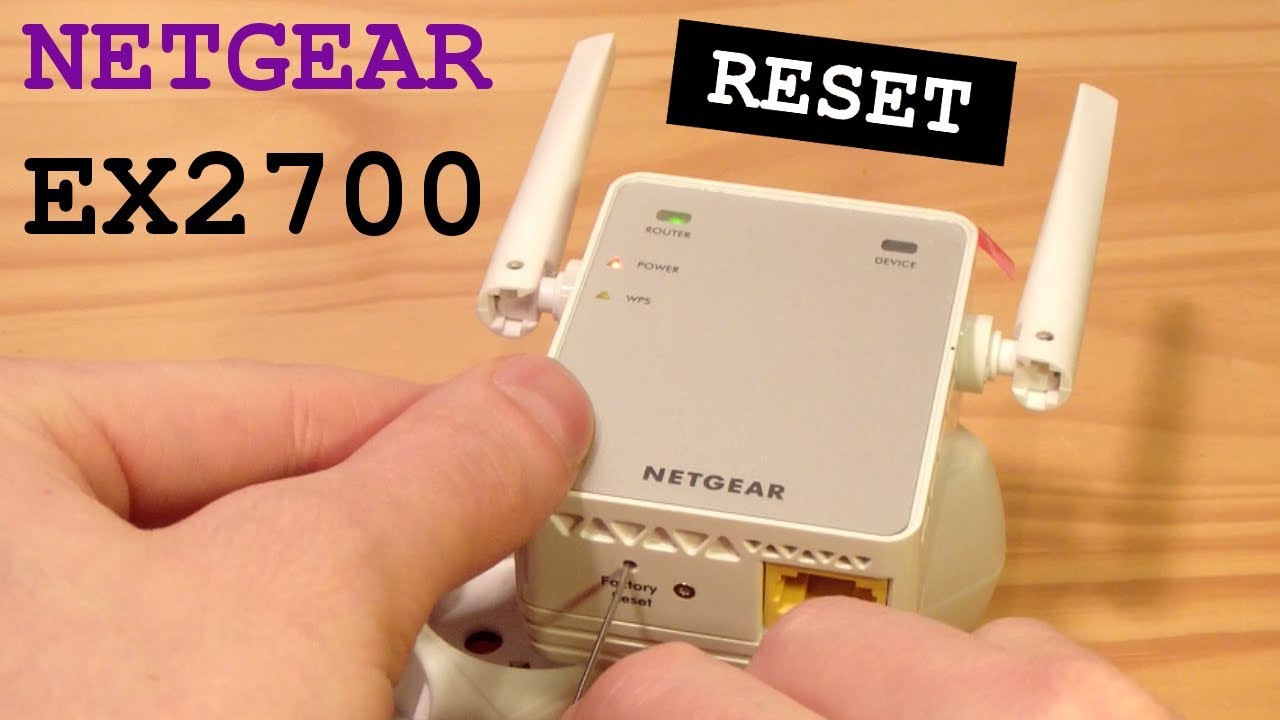
If you want to access a blazing-fast and seamless internet connection, it is recommended that you perform Netgear EX2700 setup. By setting up an EX2700 WiFi range extender, you’ll also get access to the internet in every nook and cranny of your home without worrying about a lessened speed.

For those of you who have no idea about how to configure a Netgear range extender, walk through this article. Here, we have mentioned the three methods that’ll assist you in setting up your wireless device. So, what are you waiting for? Read on.

Netgear EX2700 Setup Using Manual Method

Follow the instructions mentioned below and learn how to perform Netgear EX2700 setup using the Manual method:

  • Start by unboxing your Netgear WiFi range extender.
  • Once done, plug your device into the wall socket and turn it on.
  • Wait for the power LED to become a shade of solid green.
  • Grab an Ethernet cable and create a connection between your Netgear EX2700 extender and the WiFi router.
  • You can also connect your devices wirelessly.
  • Next, switch on your PC and open an internet browser on it.
  • In the address bar of the internet browser, type mywifiext.net, and click Enter.
  • If you are using an Apple device, consider accessing mywifiext.local for login.
  • On the Netgear extender login page, enter the default username and password of your device, and click Log In.
  • The Basic Home screen will come into view.
  • Go through the prompts displayed on the dashboard to complete setting up your Netgear EX2700 extender.

In this manner, you’ll be able to configure your Netgear EX2700 WiFi range extender using the Manual method.

Netgear EX2700 Setup Using WPS Method

Mentioned below are the steps that’ll help you install your Netgear EX2700 extender using the WPS (WiFi Protected Setup) method:

  • First of all, make sure that your extender is getting a fluctuation-free power supply from the wall socket.
  • Once assured, locate the WPS button on your device.
  • Carefully press it as soon as you locate it.
  • Now, change the location of your Netgear EX2700 range extender.

If you follow these steps carefully, you’ll surely be able to configure your EX2700 WiFi extender using the WPS button.

Netgear EX2700 Setup Via Nighthawk App

Last but not least, the Netgear Nighthawk app can also assist you in setting up your Netgear EX2700 WiFi range extender. So, walk through the guidelines mentioned below and learn how to set up your extender with the help of the Nighthawk application:

  • Unlock your smartphone.
  • Go to the Google Play Store or App Store.
  • Type Netgear Nighthawk app in the Search bar, and tap Search.
  • From the displayed results, choose the Netgear Nighthawk app, and tap Download.
  • Wait patiently for the application to get downloaded, then installed.
  • Once the app gets installed, create a Netgear account using your full name, password, and email address.
  • Then, log in to your Netgear EX2700 extender using the default login credentials.
  • Tap Log In.
  • The Netgear Genie setup wizard will pop up on your screen.
  • Follow the on-screen displayed on the Netgear Genie dashboard and finish setting up your Netgear EX2700 WiFi extender.

And that’s it! With that, you’ll be able to set up your Netgear WiFi range extender by using the Nighthawk application.

Wrapping Up

So, this was all about how to perform Netgear EX2700 setup using the Manual method, WPS method, and the Nighthawk app. If you enjoyed reading this article and are now able to access a blazing-fast internet connection in your home, don’t hesitate to leave a word of appreciation in the comment section. We’ll be waiting!


You Might Also Like

How Belt Press Rentals Can Improve Wastewater Management Efficiency

Fix Mac Outlook Error Code 19723

Cisco CCIE vs CCDE

Technologies That Moviematric Changed the Art of Cinema

Sign Up For Daily Newsletter

Be keep up! Get the latest breaking news delivered straight to your inbox.
[mc4wp_form]
By signing up, you agree to our Terms of Use and acknowledge the data practices in our Privacy Policy. You may unsubscribe at any time.
Admin April 28, 2022
Share this Article
Facebook Twitter Copy Link Print
Share
What do you think?
Love0
Sad0
Happy0
Sleepy0
Angry0
Dead0
Wink0
Previous Article VPS Server Top 5 Benefits of Using VPS Server
Next Article Dairy Processing Equipment Market Report 2021-26: Size, Growth, Trends, Share and Forecast
Leave a comment

Leave a Reply Cancel reply

Your email address will not be published. Required fields are marked *

Stay Connected

248.1k Like
69.1k Follow
134k Pin
54.3k Follow
banner banner
Create an Amazing Newspaper
Discover thousands of options, easy to customize layouts, one-click to import demo and much more.
Learn More

Latest News

Smart Business Communication: Trends Shaping the Future of Connectivity
Modern Solutions for Thinning Hair: New Advances and Everyday Strategies
How Belt Press Rentals Can Improve Wastewater Management Efficiency
A Guide to Selecting Microwave Moisture Analyzers

We influence 20 million users and is the number one business and technology news network on the planet

Recent Posts

  • Smart Business Communication: Trends Shaping the Future of Connectivity
  • Modern Solutions for Thinning Hair: New Advances and Everyday Strategies
  • How Belt Press Rentals Can Improve Wastewater Management Efficiency
  • A Guide to Selecting Microwave Moisture Analyzers
  • The Revolution of AI Cloning in the Creator Economy and E-commerce

Navigation

  • Write for Us
  • Contact
  • Disclaimer
  • Privacy Policy
Tech Daily TimeTech Daily Time

© 2023 Tech Daily Time. All Rights Reserved.

  • Write for Us
  • Contact
  • Disclaimer
  • Privacy Policy

Removed from reading list

Undo
Welcome Back!

Sign in to your account

Lost your password?


